

Build → Assistant → Select Assistant → Tools → Transfer Call Tool
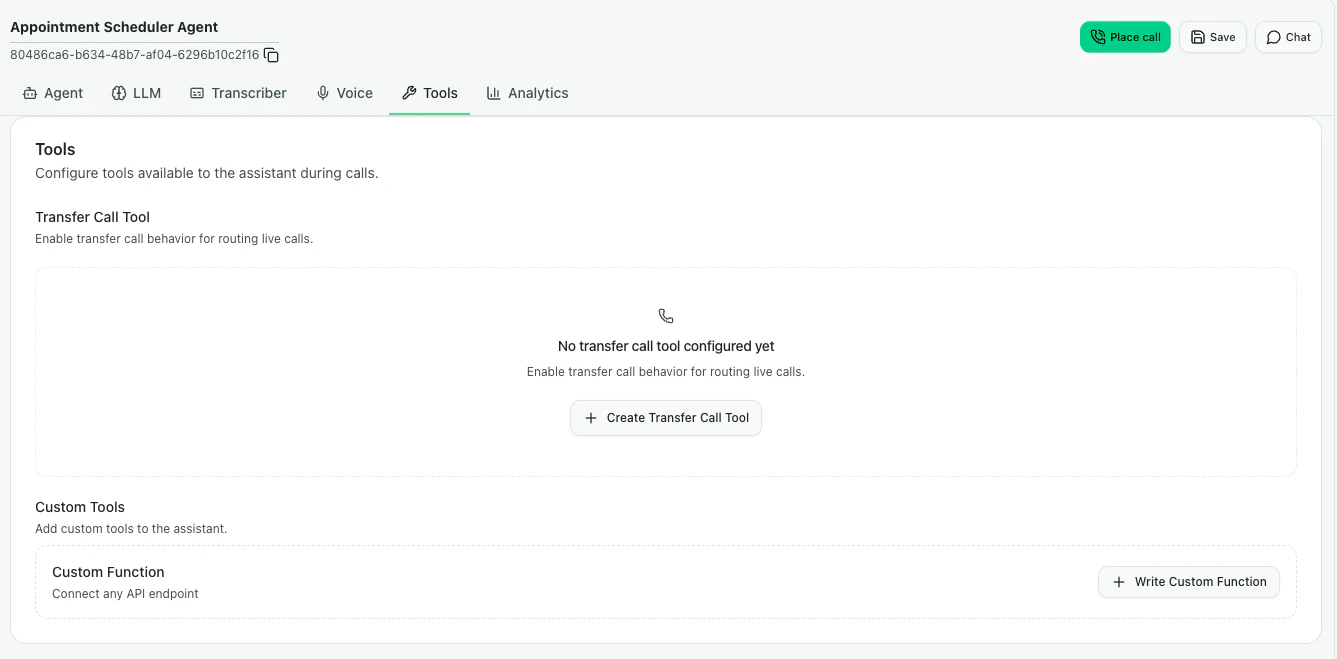
Tools tab in CallHQ assistant setup
What is Call Transfer?
Call transfer enables your assistant to hand off an active phone call while the caller is still on the line. The assistant decides when to transfer based on your transfer description and the live conversation. For example, you can transfer when a caller:- Asks to speak with a human
- Requests a sales, billing, or support team
- Needs help outside the assistant’s scope
- Reaches an escalation condition defined in your prompt
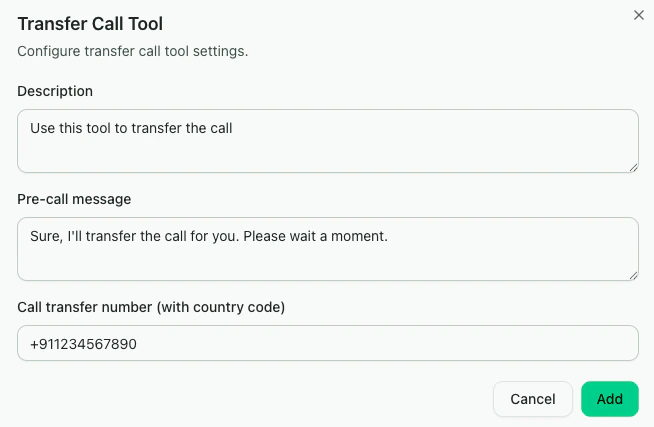
Transfer call in CallHQ assistant setup
Configuration Options
If your assistant supports multiple languages, add transfer messages that match the languages your callers use.
How to Set Up Call Transfer
1
Open the Tools Tab
Go to Build → Assistant, select your assistant, then open the Tools tab.
2
Create Transfer Call Tool
In the Transfer Call Tool section, click Create Transfer Call Tool.
3
Add the Destination Number
Enter the phone number where calls should be transferred. Use international format with the country code.
4
Write a Clear Description
Describe exactly when the transfer should trigger, such as “Transfer when the caller asks for pricing, demos, or the sales team.”
5
Add a Pre-tool Message
Set the message your assistant speaks before starting the transfer.
6
Save and Test
Save the transfer configuration, then test it with realistic caller phrases before using it in production.
For multiple departments, create separate transfer tools for Sales, Support, Billing, or other teams. Give each tool its own destination number and trigger description.
Example Conversation
Caller requests a human agent
Caller requests a human agent
Caller: “I’d like to speak with someone from your sales team.”Assistant: “Sure, I’ll transfer you to our sales team. Please wait a moment.”The assistant triggers the transfer call tool and routes the call to the configured sales number.
Best Practices
Be Specific
Use detailed descriptions like “Transfer to sales when the caller asks about pricing, demos, or purchasing” instead of generic wording.
Test Phone Numbers
Verify destination numbers are correct and reachable before deploying your assistant.
Use Pre-tool Messages
Set a friendly message so callers know they are being transferred.
Plan for Failures
Decide what the assistant should do if the destination number is busy or unavailable.