

Objective
Embed the CallHQ Web Call Widget on your website to enable real-time voice conversations with your AI assistant. Ideal for capturing leads, automating support, or enabling voice-based interaction directly on your site.Steps to Add the Web Widget
Follow these simple steps to generate and embed your personalized script:1. Visit the Dashboard
Go to https://web.callhq.ai and log in using your CallHQ credentials.2. Navigate to the Widget Section
On the left-hand sidebar, click:Build → Web WidgetThis will open the configuration page where you can customize your widget.
3. Configure Your Widget
Fill in the fields as shown:- Assistant: Choose the assistant you want to embed (e.g., Tripclap)
- Company Name: This will appear in the widget header
- Agent Name: Your AI agent’s name (e.g., Riya)
- Button Color: Customize the widget button color (hex format, e.g.
#0084ff) - Widget Position: Choose whether the widget appears on the left or right of the screen
4. Copy the Script
Once filled, a script tag will appear on the right. It will look like this:5. Embed in Your Site
Paste the copied script before the closing</body> tag of your HTML page, or inside your site’s layout file if using a framework like React, Next.js, or Vue.
Example Use Case
- On a product page, enable voice support for visitor questions.
- On a contact form, initiate live qualification via voice instead of waiting for form submissions.
- Use in a landing page to improve lead conversion through human-like conversation.
Preview
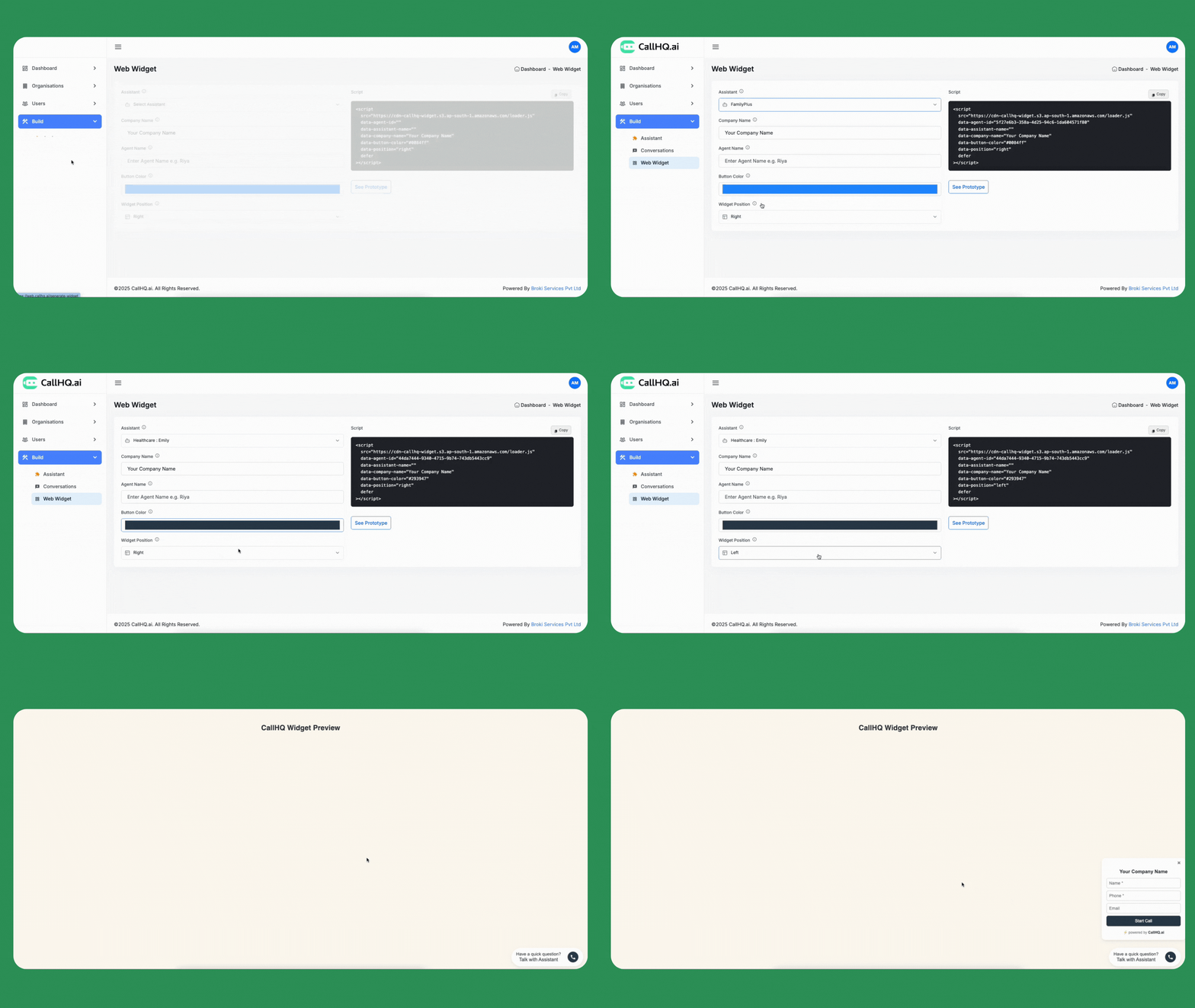
Web Widget Configuration Page