

Build → Assistant → Select Assistant → Tools → Custom Tools
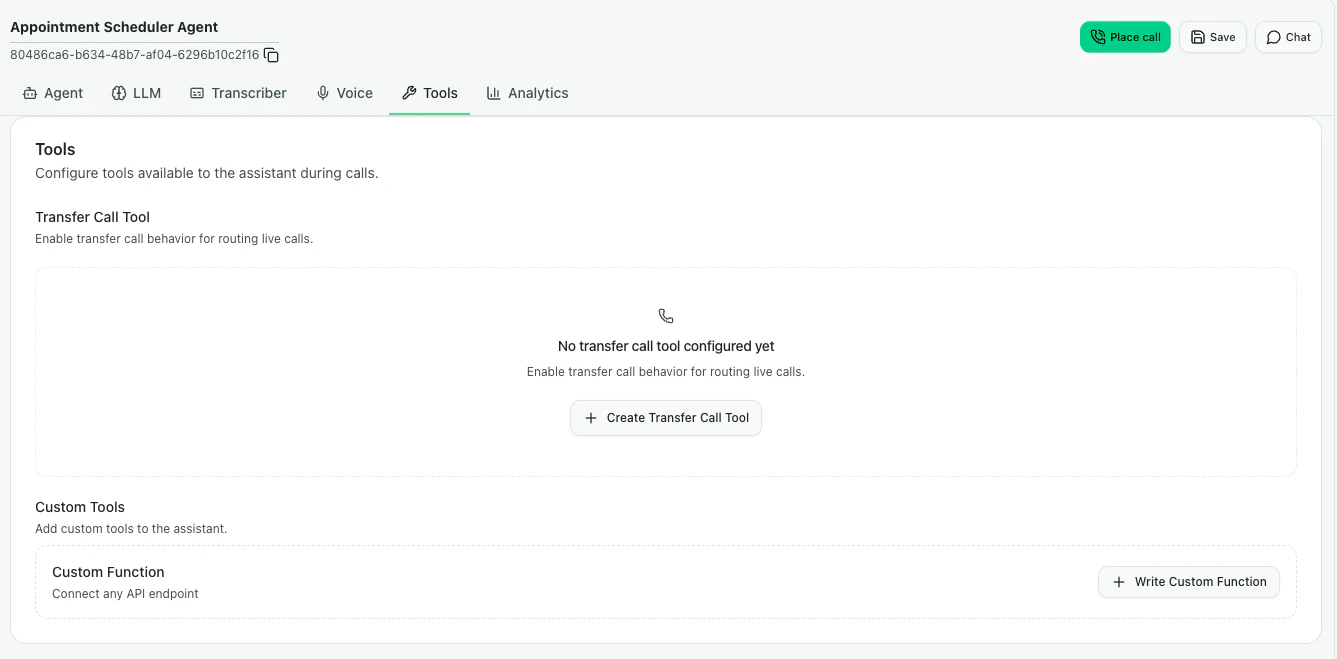
Tools tab in CallHQ assistant setup
What is a Custom Function?
A custom function is a tool definition that tells the assistant:- What action the function performs
- When the assistant should call it
- Which parameters must be collected from the caller
- Which API endpoint CallHQ should request
- How the API response should be returned to the assistant
Custom Functions use the same function calling behavior described in Function Calling.
Create a Custom Function
In the Tools tab, go to Custom Tools and click Write Custom Function. This opens the custom function configuration editor.1
Define the Function
Add a clear function
name and description. The assistant uses these fields to decide when the function should be called.2
Add Parameters
Define the information the assistant needs to collect from the caller before making the API request.
3
Configure the API Request
Set the request method, URL, headers, authentication details, and request body required by your API.
4
Save and Test
Save the tool, then test the assistant through chat, web call, or phone call to confirm the function triggers at the right time.
The fields
name, description, key, and method are required. The key must be set to custom_task.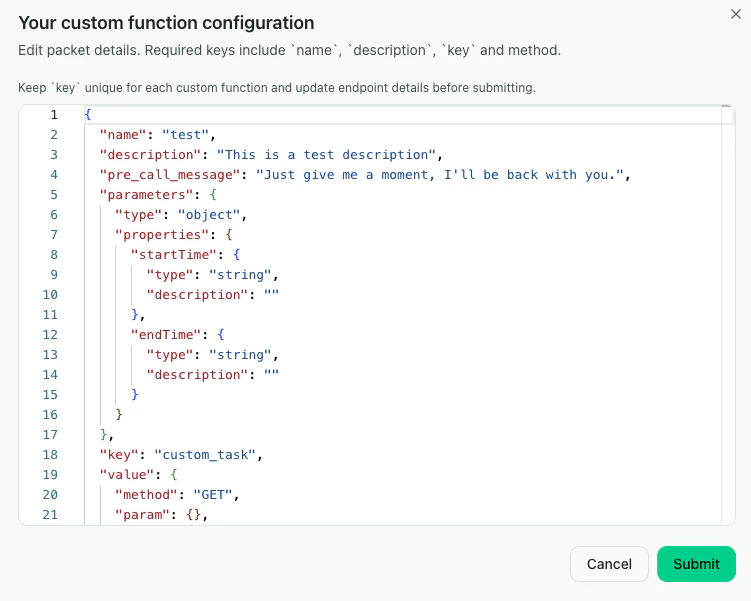
Custom Function Tab CallHQ assistant setup
Example Schema
Use a schema like this as a starting point for a custom API integration:url, headers, parameters, and descriptions with the values required by your API.
Using Context Variables
You can pass dynamic conversation values into custom function parameters or request configuration. Common variables include:{agent_id}for the assistant ID{call_sid}for the call ID{from_number}for the caller’s phone number{to_number}for the number that received the call- Custom variables provided in the assistant prompt or call configuration
Managing Custom Functions
After a custom function is added, it appears as a tool card in the Tools tab.- Click the custom function card to review or update its configuration.
- Delete the tool when the assistant should no longer use that API.
- Re-test the assistant after every change to confirm the function still triggers correctly.
Best Practices
- Use action-oriented function names like
create_support_ticket,check_order_status, orsubmit_lead. - Write descriptions that explain exactly when the assistant should call the function.
- Keep required parameters limited to information your API truly needs.
- Use
pre_call_messagewhen the API call may take a moment. - Return concise API responses so the assistant can continue the conversation naturally.
- Test with realistic caller phrases, including incomplete or unclear information.