> ## Documentation Index
> Fetch the complete documentation index at: https://docs.callhq.ai/llms.txt
> Use this file to discover all available pages before exploring further.
# Function Calling
> Use function tools with CallHQ voice AI assistants to automate workflows during live conversations.
Function calling lets your CallHQ voice AI assistant take real-time actions during a conversation. Instead of only responding with speech, your assistant can trigger workflows such as transferring a call, booking an appointment, fetching data from an API, or sending information to your backend.
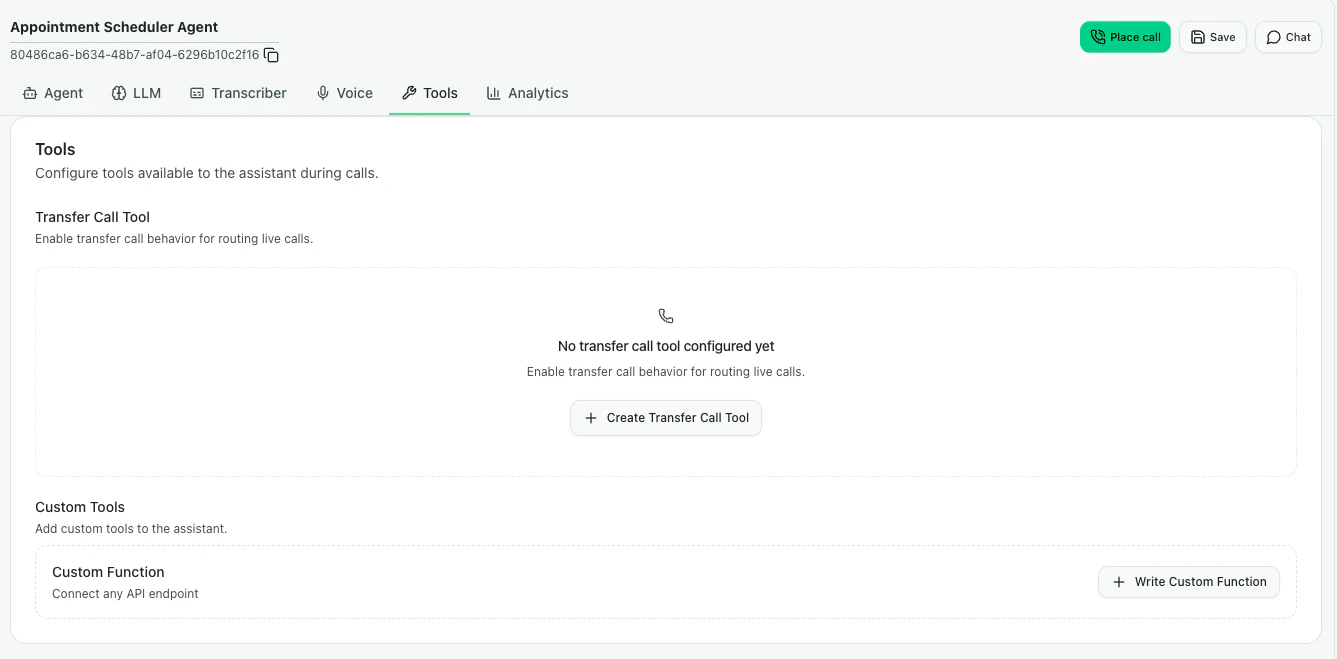
To access this section:\
**Build → Assistant → Select Assistant → Tools**
 Function calling follows the [OpenAI function calling specification](https://platform.openai.com/docs/guides/function-calling), so you can reuse compatible function schemas with CallHQ.
***
## What is Function Calling?
Function calling gives your assistant access to tools that run when the conversation requires an action. For example, a support assistant can transfer a caller to a human agent, while a scheduling assistant can collect appointment details and send them to your booking system.
The assistant decides when to call a function based on the conversation context, the function name, and the function description you provide.
**The description is everything.** The LLM relies heavily on your function description to decide when a tool should be triggered. A vague description can lead to unreliable behavior.
***
## Available Function Tools
CallHQ provides function tools for common voice AI workflows. Use the **Tools** section in the assistant setup to add and configure tools for your assistant.
Route a live call to a human agent or another phone number.
Connect your assistant to an external API endpoint using a custom function schema.
For custom integrations, define the function schema manually or generate it from an existing cURL command when available.
***
## How It Works
The LLM reads the function's `name`, `description`, and parameters to understand what the function does.
Based on the live conversation, the assistant decides whether the function should be triggered.
The assistant collects the required parameter values from the caller's responses.
CallHQ sends the configured request to your API or runs the selected built-in tool.
The function response is passed back to the assistant so it can continue the conversation naturally.
***
## Context Variables
You can pass conversation context into function parameters using variables. These values are automatically available during calls:
| Variable | Description |
| ---------------- | --------------------------------------------------------------------- |
| `{agent_id}` | The ID of the assistant handling the call |
| `{call_sid}` | Unique ID of the phone call |
| `{from_number}` | Phone number that initiated the call |
| `{to_number}` | Phone number that received the call |
| Custom variables | Any variable you define in the assistant prompt or call configuration |
Variables defined for your assistant are automatically substituted in function parameters. Learn more in [Variable Values](/assistants/dynamic-variables).
***
## Best Practices
* Write clear function names that describe the action, such as `book_appointment` or `transfer_to_support`.
* Use detailed descriptions that explain when the assistant should call the function.
* Mark only truly required fields as required, so the assistant does not over-collect information.
* Test function behavior with chat, web calls, and phone calls before using it in production.
* Keep API responses concise so the assistant can easily interpret the result.
***
Function calling follows the [OpenAI function calling specification](https://platform.openai.com/docs/guides/function-calling), so you can reuse compatible function schemas with CallHQ.
***
## What is Function Calling?
Function calling gives your assistant access to tools that run when the conversation requires an action. For example, a support assistant can transfer a caller to a human agent, while a scheduling assistant can collect appointment details and send them to your booking system.
The assistant decides when to call a function based on the conversation context, the function name, and the function description you provide.
**The description is everything.** The LLM relies heavily on your function description to decide when a tool should be triggered. A vague description can lead to unreliable behavior.
***
## Available Function Tools
CallHQ provides function tools for common voice AI workflows. Use the **Tools** section in the assistant setup to add and configure tools for your assistant.
Route a live call to a human agent or another phone number.
Connect your assistant to an external API endpoint using a custom function schema.
For custom integrations, define the function schema manually or generate it from an existing cURL command when available.
***
## How It Works
The LLM reads the function's `name`, `description`, and parameters to understand what the function does.
Based on the live conversation, the assistant decides whether the function should be triggered.
The assistant collects the required parameter values from the caller's responses.
CallHQ sends the configured request to your API or runs the selected built-in tool.
The function response is passed back to the assistant so it can continue the conversation naturally.
***
## Context Variables
You can pass conversation context into function parameters using variables. These values are automatically available during calls:
| Variable | Description |
| ---------------- | --------------------------------------------------------------------- |
| `{agent_id}` | The ID of the assistant handling the call |
| `{call_sid}` | Unique ID of the phone call |
| `{from_number}` | Phone number that initiated the call |
| `{to_number}` | Phone number that received the call |
| Custom variables | Any variable you define in the assistant prompt or call configuration |
Variables defined for your assistant are automatically substituted in function parameters. Learn more in [Variable Values](/assistants/dynamic-variables).
***
## Best Practices
* Write clear function names that describe the action, such as `book_appointment` or `transfer_to_support`.
* Use detailed descriptions that explain when the assistant should call the function.
* Mark only truly required fields as required, so the assistant does not over-collect information.
* Test function behavior with chat, web calls, and phone calls before using it in production.
* Keep API responses concise so the assistant can easily interpret the result.
***